MacBook Pro Desk Setup Guide 2026: Docks, Displays, Stands, and Clamshell Mode
Build a one-cable MacBook Pro desk setup in 2026: Thunderbolt 5 docks, the best displays, vertical and raised stands, clamshell mode, and three builds.

Quick picks: Single-Cable Thunderbolt Dock · Best Display · Stands · Keyboard and Mouse · Clamshell Mode · Three Builds
We may earn a commission if you buy through our links.
A MacBook Pro desk setup has one job: make sitting down feel like a desktop and leaving feel like unplugging a phone. That means one cable for power, display, and peripherals, a stand that keeps the laptop out of the way, and a display worth looking at. Here is what works for the current M4 and M5 machines.
What Changed With the M4 and M5 MacBook Pro
The Apple MacBook Pro split its ports by chip starting with the M4 generation. Base M4 and M5 models have three Thunderbolt 4 ports. Pro and Max chips get Thunderbolt 5, which doubles bandwidth to 80Gbps and supports faster external SSDs and more display bandwidth. All models keep HDMI, an SD card slot, MagSafe 3, and a headphone jack.

Apple MacBook Pro 14-inch
$1,599.00 on Amazon (as of Sep 24, 2026) · Price and availability may change.
External display limits also differ by chip. The base chip drives two external displays. Pro chips drive two external displays alongside the built-in screen, and Max chips drive up to four. These figures shift with resolution and refresh rate, so confirm on Apple’s tech specs page for the exact chip you own before you plan a triple-monitor desk.
The practical takeaway: if you have a base chip, a Thunderbolt 4 or USB-C dock is all you need. If you have a Pro or Max chip, a Thunderbolt 5 dock unlocks the full port.
Single-Cable Setup With a Thunderbolt Dock
A dock turns one port on the laptop into a whole desk. The CalDigit TS5 Plus is the top of the range: Thunderbolt 5 upstream, multiple downstream Thunderbolt and USB-C ports, several USB-A ports, 10Gb Ethernet, and an SD reader, with enough power delivery to charge a 16-inch MacBook Pro. It costs around $500. The standard TS5 drops a few ports and some money.

CalDigit TS5 Plus
$499.99 on Amazon (as of Sep 24, 2026) · Price and availability may change.
The OWC Thunderbolt 5 Dock is the value Thunderbolt 5 option at around $300 to $350. It has fewer ports than the CalDigit but covers the essentials: three downstream Thunderbolt ports, USB-A, 2.5Gb Ethernet, and a card reader.
If you have a base chip or a tight budget, an Anker USB-C docking station in the $100 to $200 range handles a 4K display, USB-A peripherals, Ethernet, and 85W to 100W of charging. Confirm the display output supports 4K at 60Hz, not 30Hz, before buying.
Put the dock at the back of the desk or under it. Run one cable to the front. That is the entire connection ritual.
Best Display
The Apple Studio Display is the display Apple designed for this laptop. Its 27-inch 5K panel matches the pixel density of the MacBook Pro’s own screen, so text looks the same on both. One Thunderbolt cable carries video, 96W of power, and three USB-C ports. It is around $1,599, and it makes the dock optional for many people.
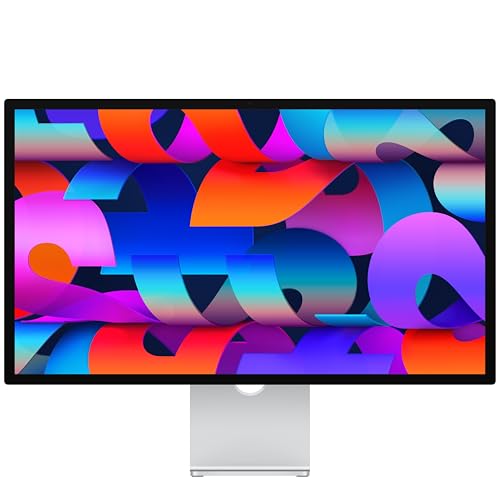
Apple Studio Display
$1,549.99 on Amazon (as of Sep 24, 2026) · Price and availability may change.
For less money, the Dell U2723QE is a 27-inch 4K monitor with a built-in USB-C hub and 90W charging, around $600. It gives you a one-cable setup without a separate dock. The BenQ PD2725U is the designer’s alternative with Thunderbolt 3 daisy-chaining and calibrated color, around $700 to $800.
If you want 5K without Apple, the Samsung ViewFinity S9 and the LG 27-inch 5K UltraFine both match the Studio Display’s resolution. Pricing on both moves around and model numbers change, so check the exact panel, Thunderbolt support, and current price before buying.
Stands: Vertical Clamshell vs Raised Open
There are two ways to park a MacBook Pro on a desk, and they suit different people.
A vertical stand holds the laptop closed, on its edge, next to the monitor. The Twelve South BookArc is the classic, around $60 to $80 depending on version, with a curved aluminum arch and swappable inserts for different laptop thicknesses. The Satechi vertical laptop stand is the cheaper option at around $45 to $60. Vertical is the cleanest look and takes the least desk space. You lose the laptop screen and the Touch ID sensor.
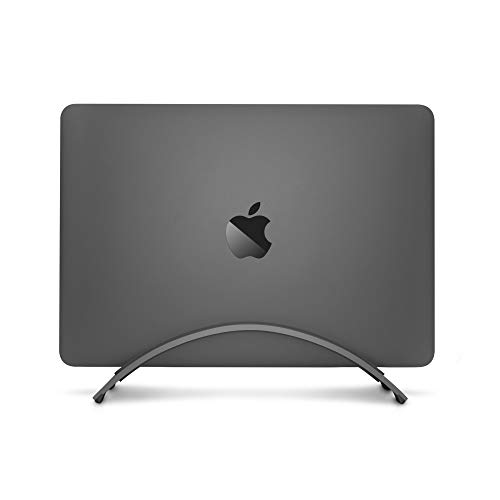
Twelve South BookArc
$29.99 on Amazon (as of Sep 24, 2026) · Price and availability may change.
A raised open stand lifts the laptop so its screen sits near eye level next to the external display. The Rain Design mStand is the fixed-height standard at around $50 to $60, a single piece of aluminum that never wobbles. The Twelve South Curve Flex adjusts in height and angle and folds flat, around $80. Raised open keeps the laptop screen as a second display and keeps Touch ID reachable.
Choose vertical if you have a Studio Display or a large 4K monitor and want the cleanest desk. Choose raised open if you actually use the laptop screen.
Keyboard and Mouse
Once the laptop is on a stand, you need a real keyboard. The Keychron K2 HE is a 75 percent wireless mechanical board with Hall effect switches and a Mac layout, around $130 to $150. If you prefer a low-profile feel closer to the MacBook’s own keys, the Logitech MX Keys S is the office standard at around $110, with backlighting and three-device pairing.

Keychron K2 HE
$139.99 on Amazon (as of Sep 24, 2026) · Price and availability may change.
The Logitech MX Master 4 is the mouse, around $120. Fast scroll, three-device pairing, and a shape that works for long days. Pair both to the laptop directly over Bluetooth rather than through the dock so they keep working when the dock is disconnected.
Clamshell Mode: Heat and How to Set It Up
Clamshell mode runs the MacBook Pro with the lid closed. Apple supports it and requires three things: the laptop connected to power, an external display, and an external keyboard and mouse. Close the lid, then press a key or click the mouse. The external display wakes as the only screen.
Heat is the common worry. With the lid closed, the keyboard deck stops shedding heat, so the chassis runs a few degrees warmer. The fans handle it. A vertical stand that leaves both sides of the laptop exposed helps more than a flat surface. Avoid pressing a closed laptop against a wall or the back of a monitor.
Two settings help. In System Settings under Battery, enable “Prevent automatic sleeping on power adapter when the display is off” so the Mac does not sleep between sessions. And if the display refuses to wake, unplug the dock cable, wait five seconds, and plug it back in.
Cable Management for a Laptop That Leaves the Desk
A laptop desk has one cable that moves every day. Keep it short, keep it visible, and keep it from falling behind the desk. A cable spine or a magnetic cable holder on the desk edge keeps the Thunderbolt cable in reach when the laptop is gone.

Under-Desk Cable Spine
$49.90 on Amazon (as of Sep 24, 2026) · Price and availability may change.
A magnetic USB-C tip makes connecting a one-hand snap. The catch: most magnetic adapters carry power and basic USB data only, not full Thunderbolt bandwidth or high-resolution video. Use one on the charging cable if you keep MagSafe, and use a plain Thunderbolt cable for the dock.
Everything else, from the dock to the display cable to the speaker wire, stays on the desk and never moves. Bundle it once in a tray and forget it.
Three Builds
Totals are approximate and exclude the MacBook Pro. Check current prices before buying.
Budget Build (around $650)
| Item | Price |
|---|---|
| Dell S2722QC 27-inch 4K USB-C | $300 |
| Anker USB-C docking station | $100 |
| Rain Design mStand | $55 |
| Keychron K2 HE | $130 |
| Logitech MX Anywhere 3S | $80 |
| Total | ~$665 |
Balanced Build (around $1,500)
| Item | Price |
|---|---|
| Dell U2723QE 27-inch 4K with USB-C hub | $600 |
| OWC Thunderbolt 5 Dock | $330 |
| Twelve South Curve Flex | $80 |
| Logitech MX Keys S | $110 |
| Logitech MX Master 4 | $120 |
| BenQ ScreenBar Halo 2 | $190 |
| Cable spine and tray | $30 |
| Total | ~$1,460 |
Pro Build (around $2,600)
| Item | Price |
|---|---|
| Apple Studio Display | $1,599 |
| CalDigit TS5 Plus | $500 |
| Twelve South BookArc | $80 |
| Keychron Q1 Max | $220 |
| Logitech MX Master 4 | $120 |
| Cable spine and magnetic tip | $50 |
| Total | ~$2,570 |
Bottom Line
Start with the display, because it decides whether you need a dock at all. A monitor with a USB-C hub and 90W charging gives most people a one-cable desk for around $600. Add a Thunderbolt 5 dock only if you have a Pro or Max chip and the drives or displays to use it. Then pick a stand based on whether you want the laptop screen or not, and keep the one moving cable somewhere you can grab it without looking.
Recommended Gear
Products we've reviewed that fit this guide. We may earn a commission if you buy through our links.


Frequently Asked Questions
- How many external displays can a MacBook Pro M4 or M5 run?
- The base M4 and M5 MacBook Pro support two external displays with the lid open. Pro chips support two external displays plus the built-in screen, and Max chips support up to four. Exact limits depend on resolution and refresh rate, so check Apple's tech specs for your specific chip before buying a second monitor.
- Do I need a Thunderbolt 5 dock for a MacBook Pro?
- Only if you have an M4 Pro, M4 Max, or newer Pro and Max chip and move large files to fast external SSDs or drive multiple high-resolution displays. Base M4 and M5 models have Thunderbolt 4 ports, so a Thunderbolt 4 dock or a good USB-C dock delivers the same real-world speed at a lower price.
- Is clamshell mode bad for a MacBook Pro?
- No. Apple supports running with the lid closed while connected to power, a display, and an external keyboard and mouse. The laptop runs slightly warmer because the keyboard deck is no longer a heat path, but the fans manage it. A vertical stand that exposes both sides of the chassis helps airflow.
- What is the best display for a MacBook Pro?
- The Apple Studio Display is the best match because its 5K resolution gives the same pixel density as the MacBook Pro's own screen, so text looks identical on both. If $1,599 is too much, a 27-inch 4K monitor with USB-C power delivery like the Dell U2723QE gives you a one-cable setup for around $600.
- Can a USB-C hub charge a MacBook Pro?
- Most USB-C docks pass through 85W to 100W, which fully charges a 14-inch MacBook Pro and keeps a 16-inch model charged under normal loads. The 16-inch can draw up to 140W under heavy sustained work, so keep the MagSafe charger nearby for video exports and long compiles. Thunderbolt 5 docks often deliver 140W.
Related Guides

Best Laptop Stands in 2026: Desk and Portable Picks
The best laptop stands for desk use and travel in 2026. Fixed and adjustable picks for ergonomic height, cooling, and portability.

Best Laptop Stands for Your Desk in 2026: Tested and Ranked
The best laptop stands for desk use in 2026. Top picks for MacBook, Windows laptops, and portable setups. Updated September 2026.

Best Cable Management Solutions for Your Desk in 2026
The best cable management products for your desk in 2026: trays, spines, clips, and sleeves. Covers under-desk and standing desk solutions.

How to Set Up Dual Monitors: The Complete Step-by-Step Guide
How to connect, configure, and position dual monitors for a productive desk setup. Covers Windows, macOS, monitor arms, and cable management.
Setup Inspiration
All setups →
Budget Student Setup Under $400
A complete student desk setup for under $400 that handles studying, online classes, and casual browsing. Proof that great setups don't need huge budgets.
Total: $385

RGB Gaming Battle Station with Dual Monitors
A fully loaded gaming setup with dual monitors, custom mechanical keyboard, and tasteful RGB lighting. Built for competitive gaming and weekend streaming.
Total: $2,400

Grovemade Desk Setup: Premium Wood Accessories Build
A desk setup anchored by Grovemade walnut wood accessories: shelf, keyboard tray, and desk pad. Built around quality materials and an intentional aesthetic. Total cost: $2,120.
Total: $2,120